GEO
How to see traffic from ChatGPT and other AI tools in GA4.
Where GA4 puts traffic from ChatGPT, Perplexity, Gemini and Copilot, why some of it lands in Direct and Unassigned, and how to set up your own AI channel step by step.
More and more people reach business websites from ChatGPT, Perplexity or Gemini answers. In Google Analytics 4 this traffic is only partly visible. Some of it lands in its own channel, some in Unassigned, and some looks like direct visits. In this guide I show where to look and how to set up GA4 to see as much of it as possible.
The AI Assistant channel in GA4
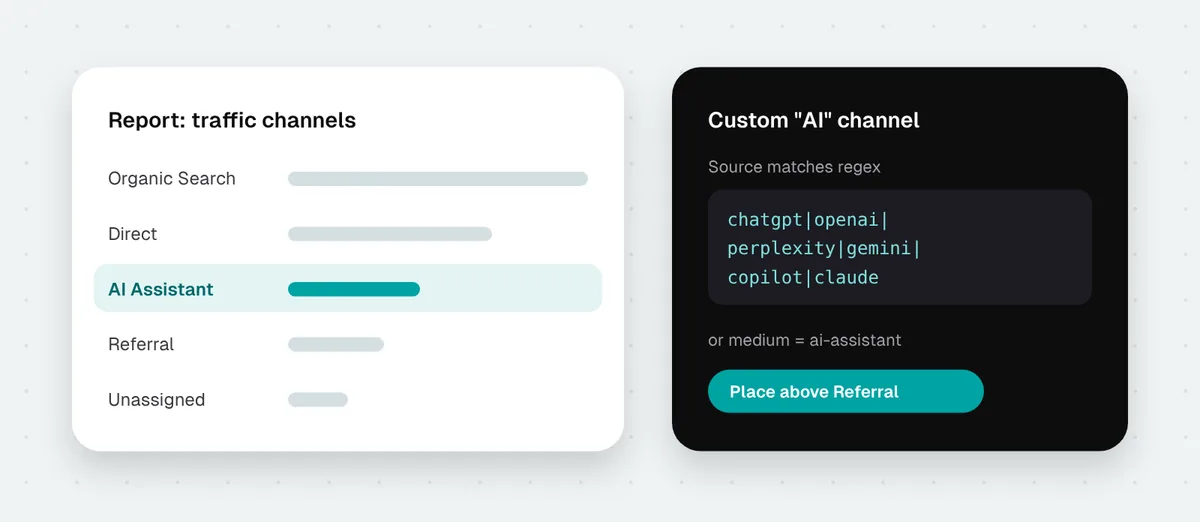
Google has added an AI Assistant channel to GA4’s default channel group. According to the documentation it covers traffic from tools such as ChatGPT, Gemini, Deepseek, Copilot or Grok. It works like this: if the referrer is on the list of AI assistants, GA4 sets the medium to ai-assistant and the campaign to (ai-assistant). The channel is evaluated before Referral, so these visits no longer mix with traffic from other websites.
You will find it in Reports > Acquisition > Traffic acquisition. Choose the “Session default channel group” dimension and look for the AI Assistant row.
The documentation also notes that the channel does not include AI Overviews or AI Mode in Google. More on that below.
Why some AI traffic goes missing
The AI Assistant channel relies on the referrer, the information about which site the user came from. The problem is that AI tools often do not pass it on. For ChatGPT, data cited in the industry suggests that only a small share of clicks carry a referrer.
ChatGPT partly makes up for this with the utm_source=chatgpt.com parameter it adds to links in answers. But a source parameter on its own, with no referrer and no medium, does not match any channel, so the visit lands in Unassigned.
| What comes with the click | How GA4 sees it | Channel |
|---|---|---|
| A referrer from the list of AI assistants | e.g. chatgpt.com / ai-assistant | AI Assistant |
| Only the utm_source=chatgpt.com parameter | chatgpt.com / (not set) | Unassigned |
| Neither a referrer nor a parameter | (direct) / (none) | Direct |
| A click from AI Overviews or AI Mode | google / organic | Organic Search |
On top of that come bugs on the AI tools’ side. In October 2026, after a new ChatGPT version rolled out, links in answer text went without the UTM parameter and opened without a referrer for about a week. Many GA4 properties saw ChatGPT traffic suddenly drop while direct visits grew. It is a good example of why a single day or week in a report means little.
Step 1: your own AI channel in GA4
You will catch the most AI traffic with a custom channel group that checks the source as well as the medium. It does not change your data, and you can apply the new group to historical data too.
- Go to Admin > Data display > Channel groups.
- Click Create new channel group. GA4 starts from a copy of the default group. Name it, for example, “Channels with AI”.
- Add a new channel called “AI” with these conditions:
- Source matches regex:
.*(chatgpt|openai|perplexity|gemini\.google|copilot\.microsoft|claude\.ai|deepseek|grok|mistral\.ai|meta\.ai).* - or Medium exactly matches:
ai-assistant
- Source matches regex:
- Move the AI channel above Referral. GA4 assigns a visit to the first matching channel, so the order matters.
- Save. In the Traffic acquisition report, choose your channel group instead of the default one.
The .* at the start and end makes the expression work where GA4 requires a full match. You can extend the list as new tools appear. Standard GA4 properties can have two custom channel groups.
This channel cannot recover visits that came with neither a referrer nor a parameter. To GA4 they are simply direct visits.
Step 2: which pages people from AI visit
The number of visits alone says little. More interesting is which pages people from AI land on and whether they contact you.
- Go to Explore and create a Free form exploration.
- Add the dimensions “Session source / medium” and “Landing page + query string”.
- Add the metrics “Sessions”, “Engaged sessions” and “Key events”.
- Add a filter: “Session source” matches the same regular expression as above.
It usually turns out that AI sends people to a few specific pages: the offer, pricing, an article with a specific answer. That shows which content AI considers the best source and which is worth developing.
Step 3: a Looker Studio report
If you report in Looker Studio, add a calculated field to your GA4 data source, for example “Channel with AI”:
CASE
  WHEN REGEXP_MATCH(Session source, ".*(chatgpt|openai|perplexity|gemini\\.google|copilot\\.microsoft|claude\\.ai|deepseek|grok|mistral\\.ai|meta\\.ai).*") THEN "AI"
  WHEN Session medium = "ai-assistant" THEN "AI"
  ELSE Session default channel group
END
With this field, the channel chart in your report shows AI separately and leaves everything else unchanged.
AI Overviews and AI Mode: you cannot separate them in GA4
Clicks from AI Overviews and AI Mode in Google have the source google / organic in GA4, just like regular search results. GA4 cannot tell them apart.
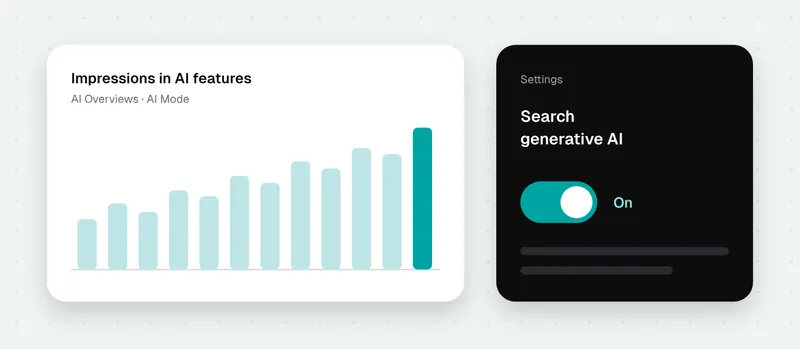
Since August 2026, though, Search Console has a separate generative AI performance report. It shows how often a link to your site appeared in AI Overviews and AI Mode, on which pages, in which countries and on which devices. It does not show clicks yet. I cover it in AI in Search Console: the new report and switch.
The impact on clicks is still only visible indirectly, for example when the click-through rate in the regular Performance report falls at a similar number of impressions for questions where Google shows an AI answer.
How to read these numbers
Everything you see in GA4 is a lower bound of AI traffic. Some visits land in Direct, and if the site uses Consent Mode, visits from people who declined analytics are not fully visible. That is why the month-to-month trend matters more than individual numbers.
Traffic is also only part of the picture. AI can recommend your business without a link, and the customer then types your name into Google or calls you. That is why in GEO, alongside traffic, I check a fixed list of questions in several AI tools. I describe it on the GEO - AI visibility page, and how to run such a test yourself in how to check if ChatGPT recommends your business.
If you want me to set this up in your GA4 and Looker Studio, see analytics & reporting.
Sources
- [GA4] Default channel group - Google Analytics Help
- [GA4] Custom channel groups - Google Analytics Help
- AI features and your website - Google Search Central
- Missing ChatGPT Traffic in GA4? A UTM Bug Broke Referral Tracking for a Week - BuildMVPFast
Was this article helpful?
Great, glad it helped!
Sorry to hear that. Tell me what was missing and I will improve it: info@outrank.pl
About the author. Maciek - SEO & GEO consultant with 10+ years of experience, formerly Head of SEO at companies including Gemini Polska and Staples Solutions. More about me